
How to Log in to TikTok with QR Code in ClearTok
Learn how to connect TikTok to ClearTok with QR Code login. Screenshot the QR code, scan it in TikTok, confirm the login, then scan your reposts.
TL;DR
- You do not need a second phone to use TikTok QR code login in ClearTok.
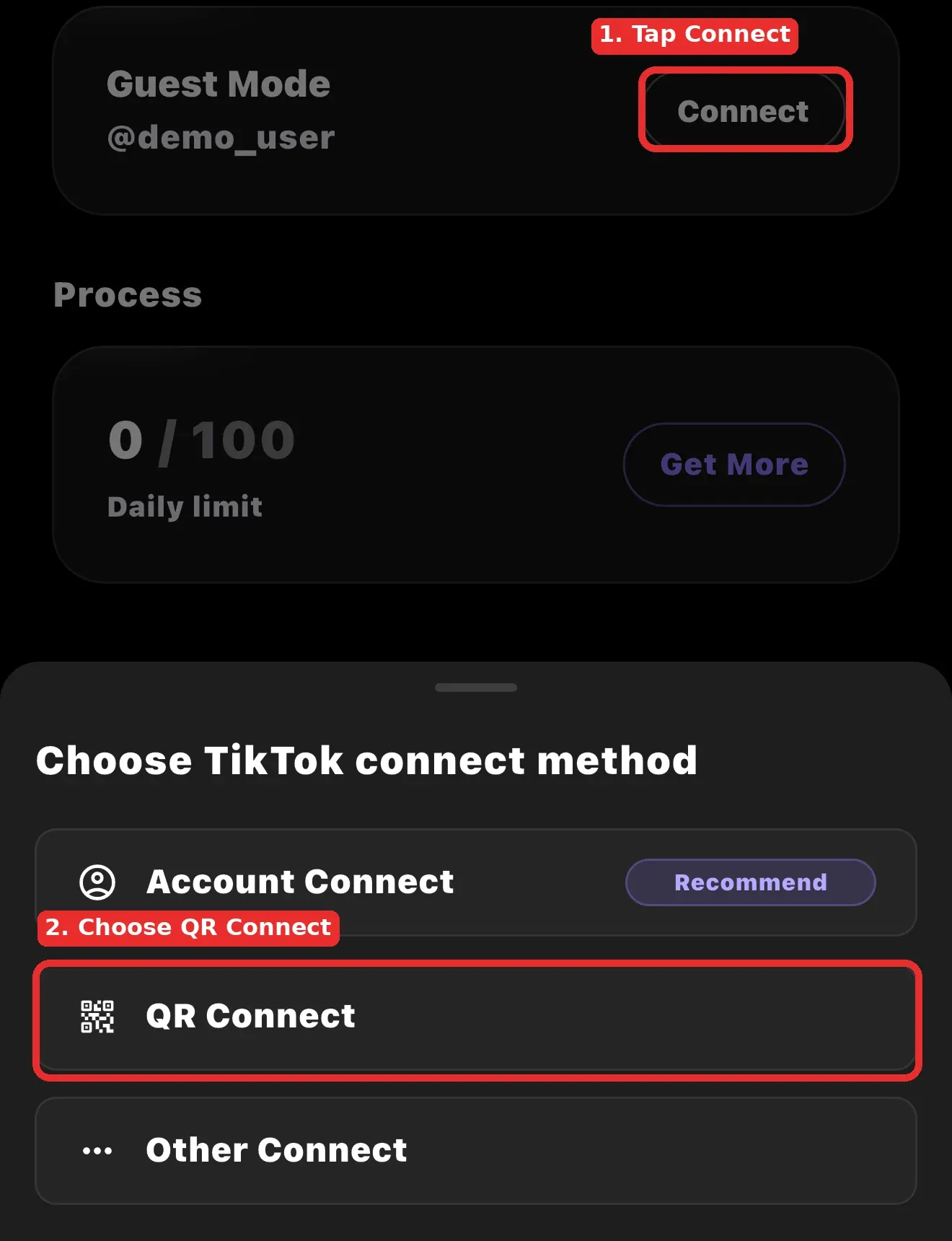
- Open ClearTok, tap Connect, choose QR Connect, and screenshot the TikTok login QR code.
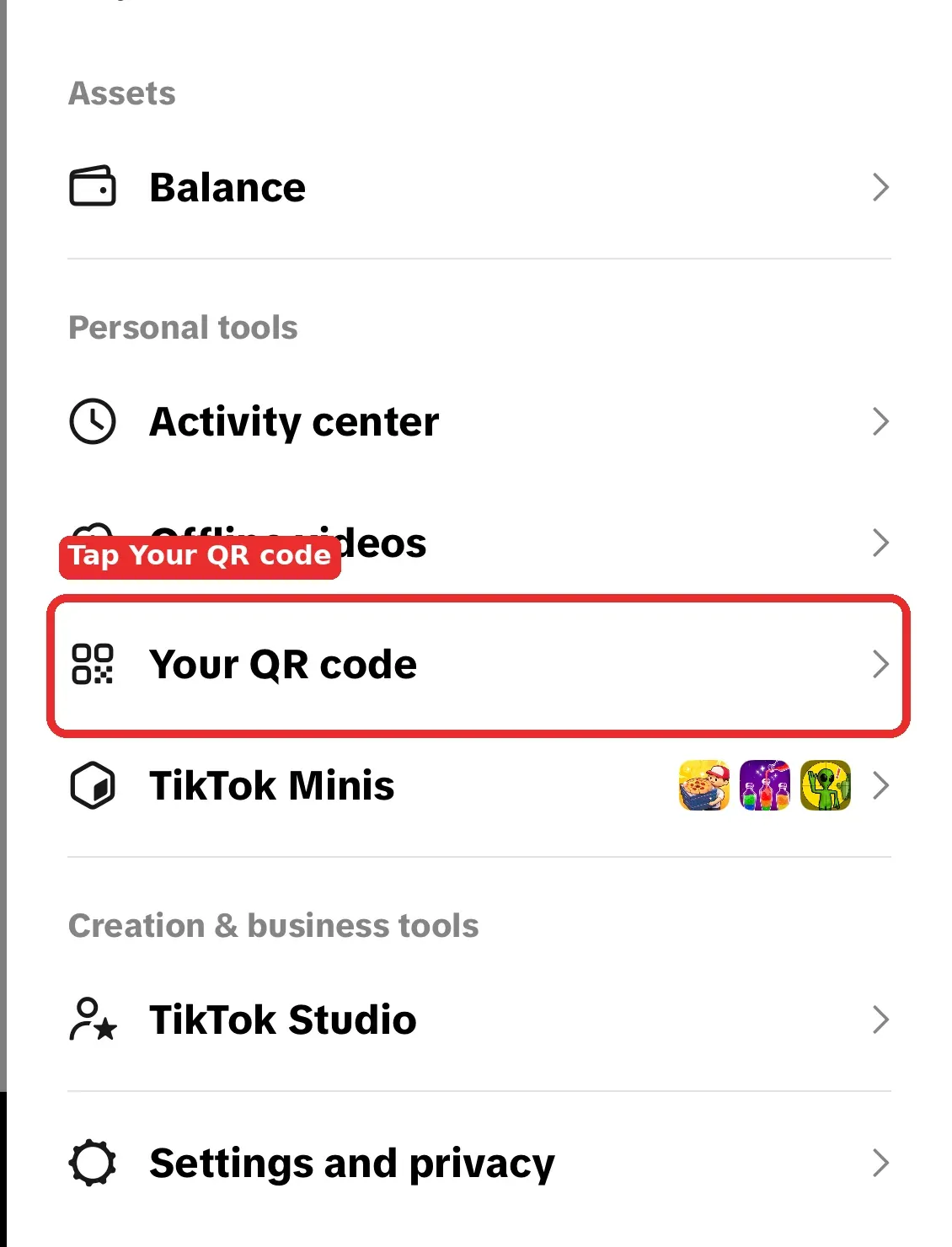
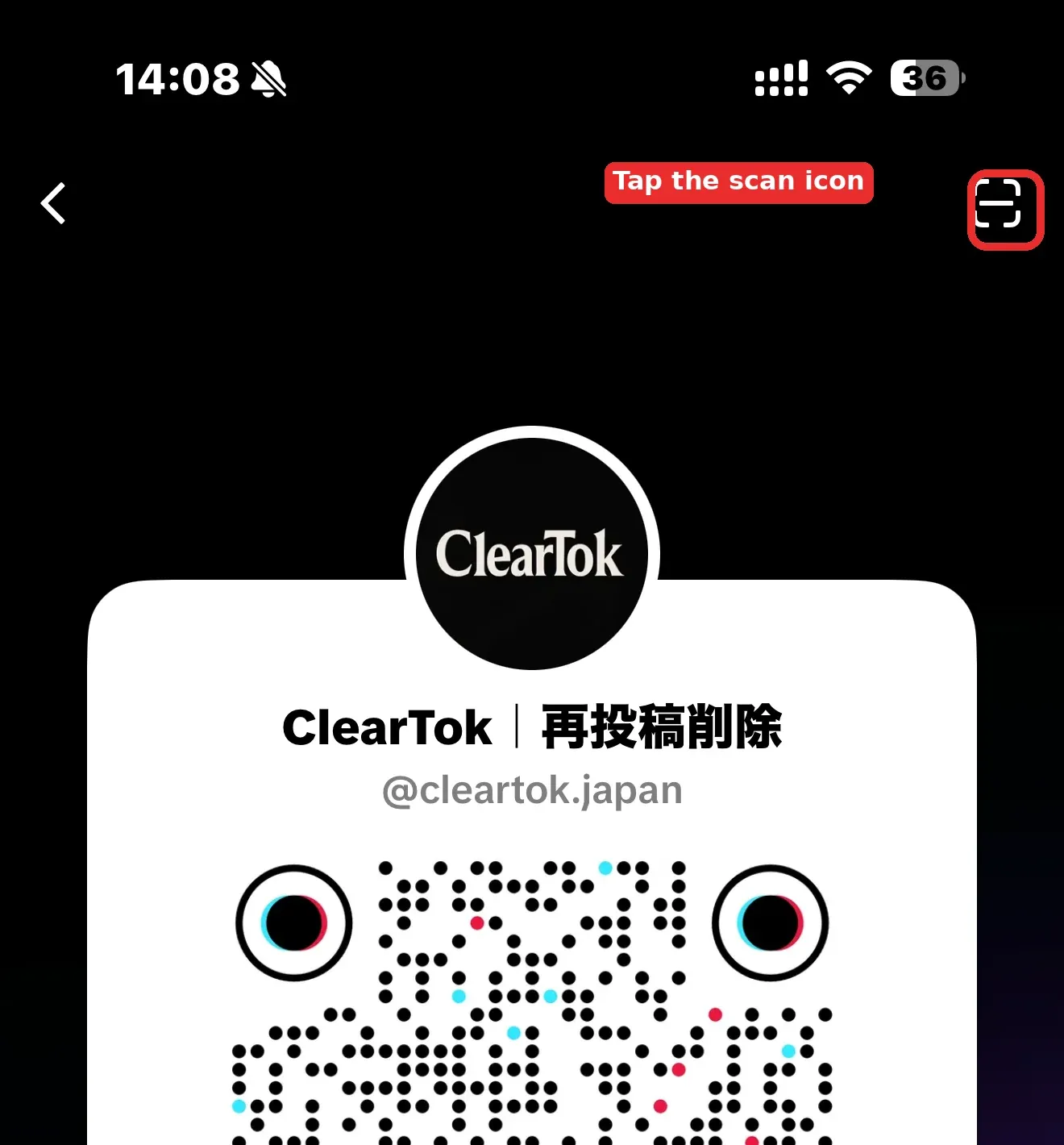
- Open TikTok, go to Your QR code, tap the scanner icon, and import or scan the screenshot.
- Confirm the login in TikTok, return to ClearTok, then tap Scan for Reposts.
Why ClearTok Needs a TikTok Connection
ClearTok helps you scan, review, and clean up your TikTok reposts. Before it can find your reposts, ClearTok needs to connect to the TikTok account you want to clean.
QR Code login is one convenient way to connect. TikTok shows a temporary QR code inside ClearTok, you screenshot that code, then confirm the login from the TikTok app where you are already signed in.
This guide is for the one-phone flow. You do not need another device as long as your TikTok app can scan or import a QR code image from your photo album.
Step 1: Tap Connect in ClearTok
Open the ClearTok app. If your TikTok account is not connected yet, ClearTok shows Guest Mode at the top of the screen.
Tap Connect to open the TikTok connection method sheet.
Step 2: Choose QR Connect
In the connection method sheet, choose QR Connect. ClearTok will open TikTok's QR Code login page inside the app.
You may also see other connection methods, such as Account Connect. Use QR Connect when you are already signed in to TikTok on the same phone and want to approve the login from TikTok.
Step 3: Screenshot the TikTok QR Code
TikTok will show a temporary login QR code. Take a screenshot of that QR code.
When you do this yourself, use the fresh QR code generated in your own ClearTok session. If the QR code expires, return to QR Connect and generate a new one.
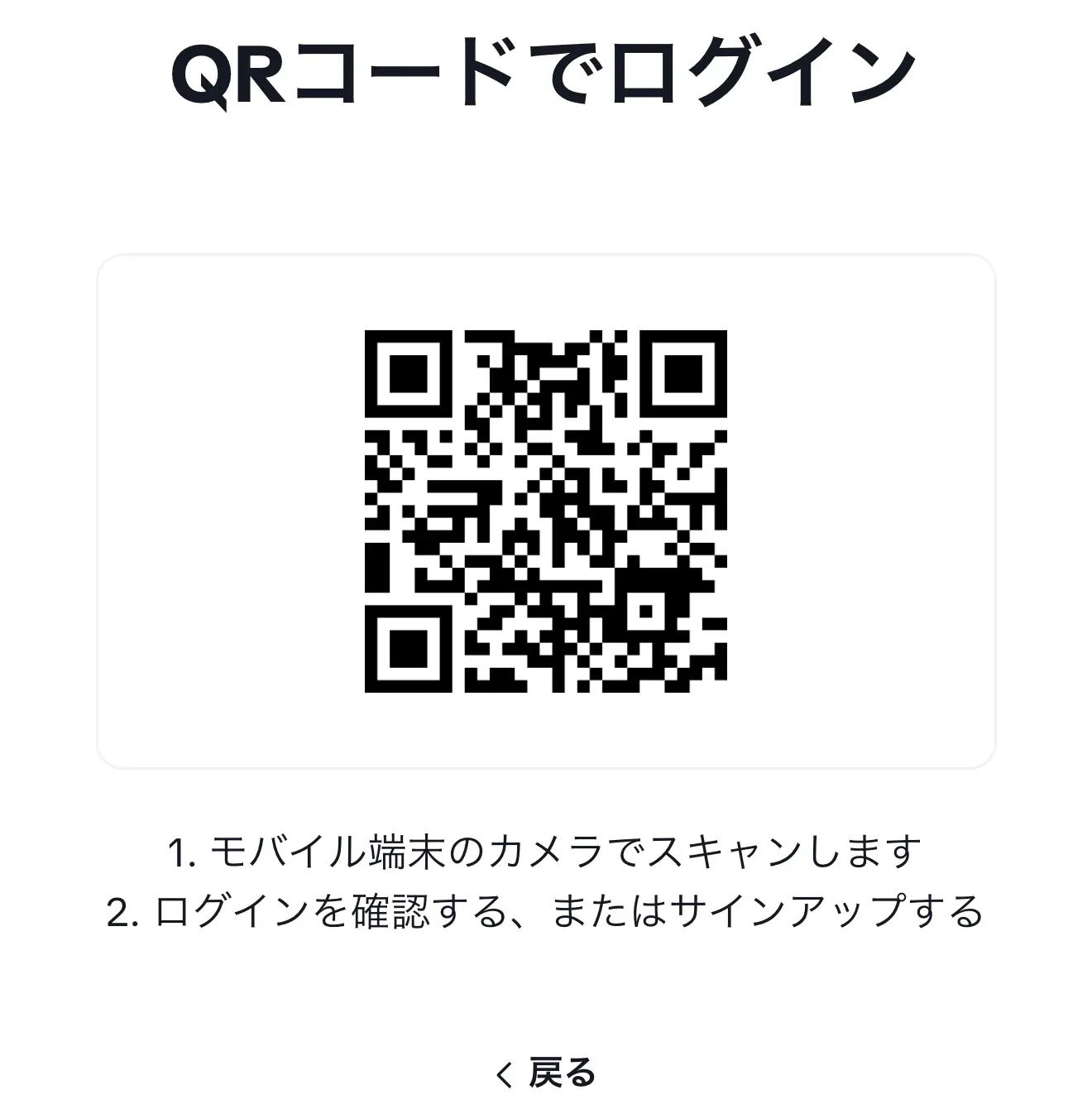
Do not share this screenshot with anyone. The QR code is only meant for the login request you started.
Step 4: Open TikTok and Tap Your QR Code
Open the TikTok app where you are already signed in to the account you want to connect.
Go to your profile, open the menu, and tap Your QR code. In some regions or app versions, the label may look slightly different, but it is the TikTok screen that shows your account QR code.
Step 5: Open the Scanner and Select the Screenshot
On the TikTok QR code screen, tap the scanner icon in the top-right corner.
If TikTok offers an album, photo, or image picker option, choose the screenshot you took in ClearTok. TikTok should read the QR code from the screenshot and show a login confirmation screen.
Confirm the login request only if it matches the action you just started in ClearTok.
Step 6: Return to ClearTok and Scan Your Reposts
After TikTok confirms the login, return to ClearTok. Your TikTok account should now be connected.
Tap Scan for Reposts to load your repost list. After scanning, ClearTok lets you review what it found and choose what to remove. You do not have to delete everything at once.
For selective cleanup, read: How to Keep Certain TikTok Reposts When Deleting Reposts with ClearTok
Troubleshooting QR Code Login
The QR code expired
TikTok QR codes can expire quickly. Go back to QR Connect in ClearTok and generate a fresh code, then take a new screenshot.
TikTok cannot read the screenshot
Make sure the QR code is fully visible in the screenshot. If it still fails, generate a new QR code in ClearTok and take a cleaner screenshot before importing it again.
You are logged into the wrong TikTok account
Check the TikTok app before confirming. QR Code login connects the account currently signed in inside TikTok, so switch accounts first if needed.
You are not logged into TikTok
Open TikTok first and sign in to the account you want to connect. Then return to ClearTok and start QR Connect again.
QR Connect still does not work
Try Account Connect if it is available in your ClearTok app version. If TikTok's QR scanner UI has changed in your region, update TikTok and ClearTok, then retry with a fresh QR code.
Safety Tips for TikTok QR Code Login
- Only scan QR codes generated from your own ClearTok session.
- Never send your QR code screenshot to another person.
- Only approve login prompts you started yourself.
- If a login prompt looks unusual, cancel it and generate a new QR code.
- Log out from unused sessions in TikTok settings if you ever approve a login on a shared device.
ClearTok is an independent tool and is not affiliated with or endorsed by TikTok or ByteDance. QR Code login is used only to connect the account you choose so ClearTok can help scan and manage your reposts.
FAQ
Can I use TikTok QR code login in ClearTok with one phone?
Yes. Take a screenshot of the QR code shown in ClearTok, open TikTok, then use TikTok's QR scanner to import or scan that screenshot.
Do I need to share my TikTok password with ClearTok?
No. QR Code login is confirmed inside TikTok. ClearTok does not need your TikTok password for this flow.
What happens after I connect TikTok to ClearTok?
ClearTok can scan your reposts, show a repost list, and let you choose which reposts to remove.
Can I delete only some reposts after logging in?
Yes. After scanning, review the repost list and keep anything you do not want removed. You can also use filters for recent reposts or selected creators.
Final Thoughts
QR Code login is useful when you are already signed in to TikTok on your phone and want a quick way to connect ClearTok. The important steps are simple: screenshot the QR code, scan or import it in TikTok, confirm the login, then return to ClearTok to scan your reposts.
Related Guides
Ready to Try ClearTok?
Stop deleting reposts one by one. Get ClearTok and clean up your entire TikTok profile in minutes.
Browser Extension
Mobile App