
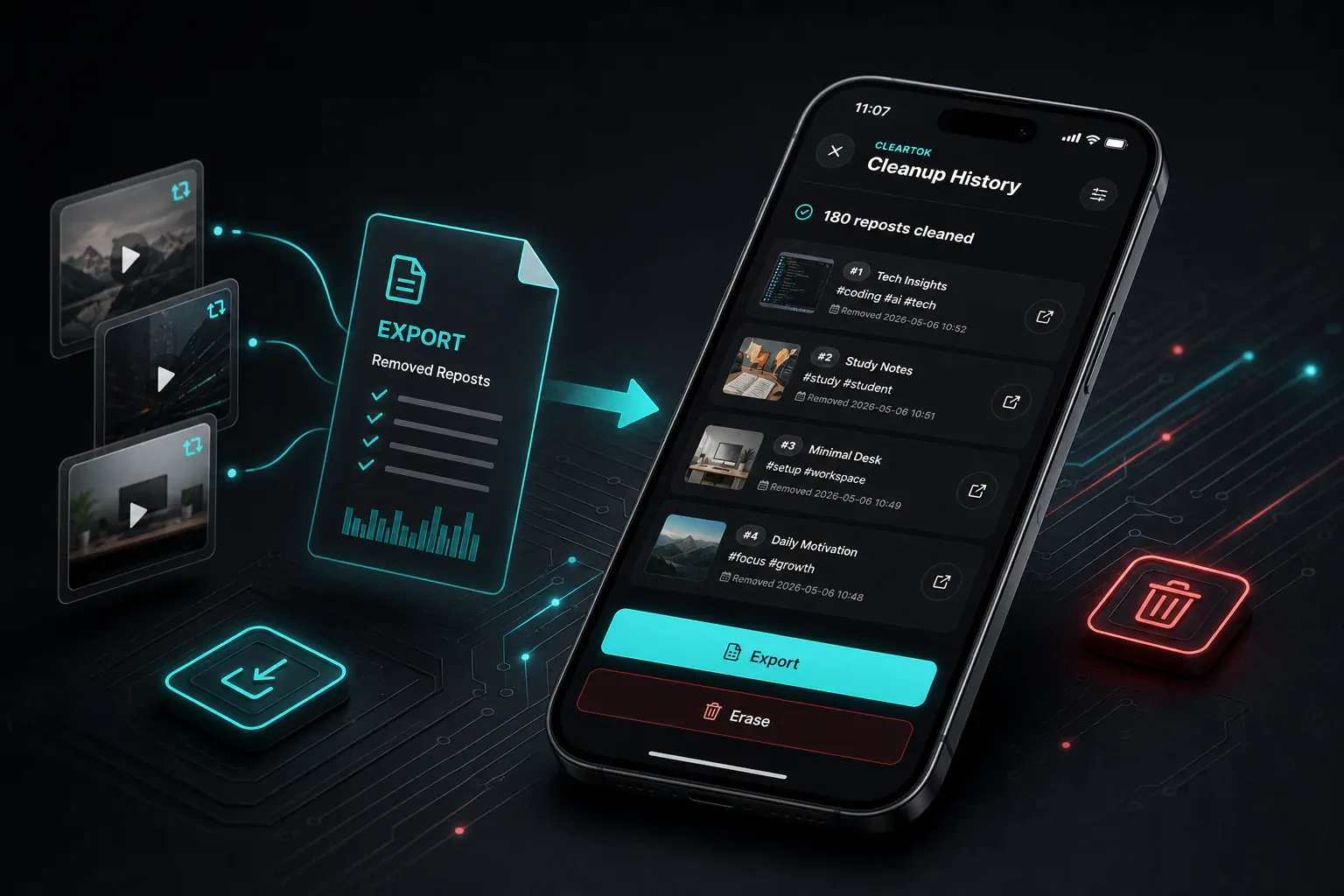
How to Export TikTok Reposts and Find Removed Videos in ClearTok
Open ClearTok, tap the cleaned count to open Cleanup History, then export the list of removed reposts or tap a row to reopen the original TikTok video and repost it manually.
TL;DR
- Open ClearTok and tap the cleaned count on the home screen to open Cleanup History.
- Tap Export to save the list of reposts ClearTok removed for later reference.
- Tap the icon on the right of any row to open the original TikTok video.
- ClearTok cannot automatically restore removed reposts inside TikTok, but you can manually repost any video that is still available.
Can ClearTok Restore Deleted Reposts Automatically?
No. Once a repost has been removed through ClearTok, it is gone from your TikTok reposts tab, and ClearTok cannot put it back automatically.
What ClearTok can do is show you exactly which reposts were removed. From Cleanup History, you can export that list and reopen the original TikTok videos one by one. If a video is still public on TikTok, you can repost it again manually from inside the TikTok app.
This guide walks through the full flow on mobile, with the exact UI labels you will see in ClearTok.
How Cleanup History Works in ClearTok
Every time ClearTok removes a repost, it records the post in Cleanup History: the creator handle, the caption, the video type, and the date the repost was removed. The history lives locally inside the app so you can review what was cleaned up later.
Cleanup History gives you two practical actions:
- Export — save the list as a reference file (useful if you ever want to track what was removed or share it with yourself across devices).
- Open original video — jump from any row straight to the source TikTok video, where you can manually repost it again.
The list does not undo anything on TikTok. Think of it as a receipt, plus a shortcut back to each original video.
How to Find Reposts Removed by ClearTok
Step 1: Open ClearTok and Tap the "Cleaned" Count
Open the ClearTok app and stay on the home screen. Below the daily processed counter, you will see a small pill that shows how many reposts ClearTok has cleaned up for your account — for example, 180 cleaned. The exact number depends on your own history.
Tap that pill to open Cleanup History.
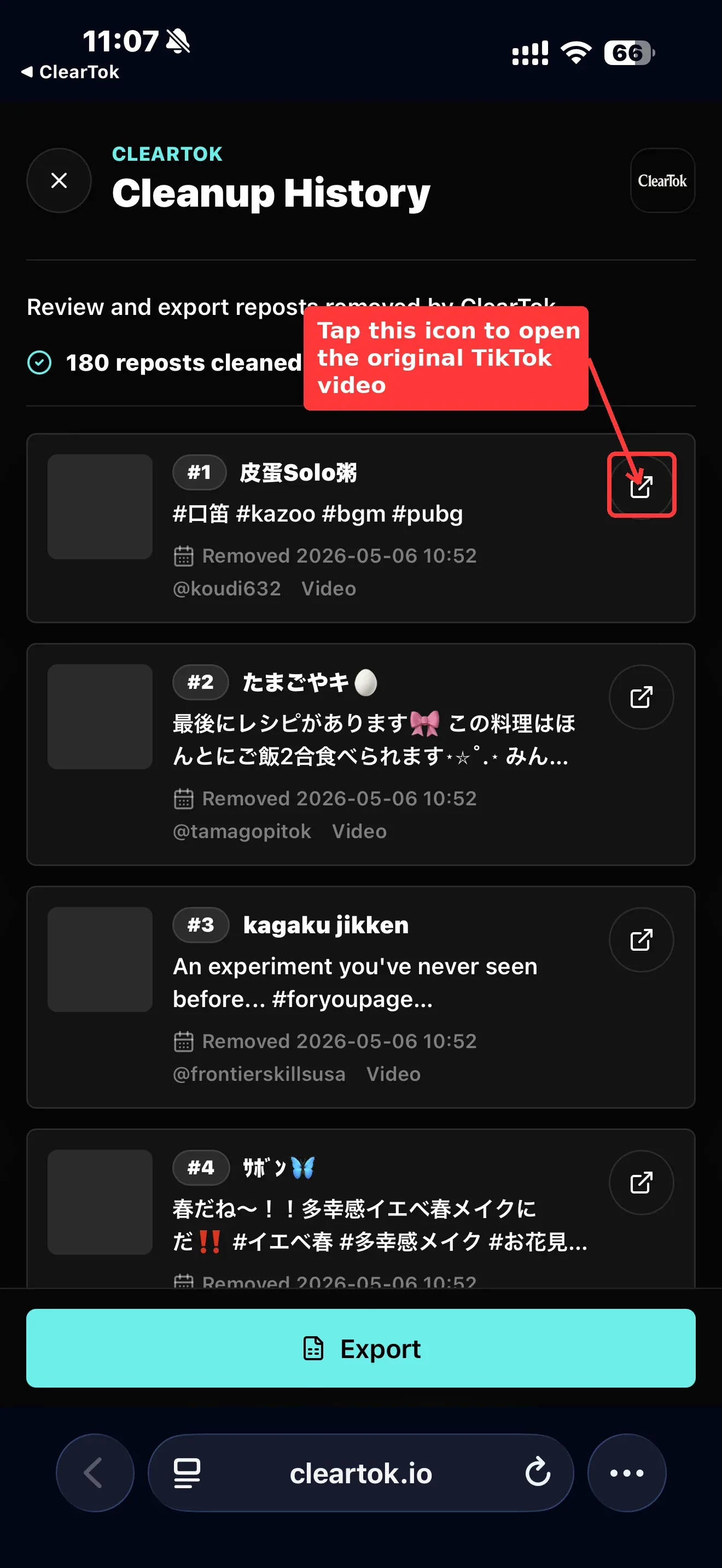
If the number reads 0 cleaned, you have not removed any reposts through ClearTok yet, so there is nothing to export. Run Scan for Reposts first, remove the reposts you want to clean, and then come back to this screen.
Step 2: Tap Export to Save Your Removed Repost List
Inside Cleanup History, each card shows one removed repost: a thumbnail, the creator handle, the caption, the removal timestamp, and the content type. Scroll through to confirm this is the list you want to keep.
When you are ready, tap Export at the bottom of the screen.
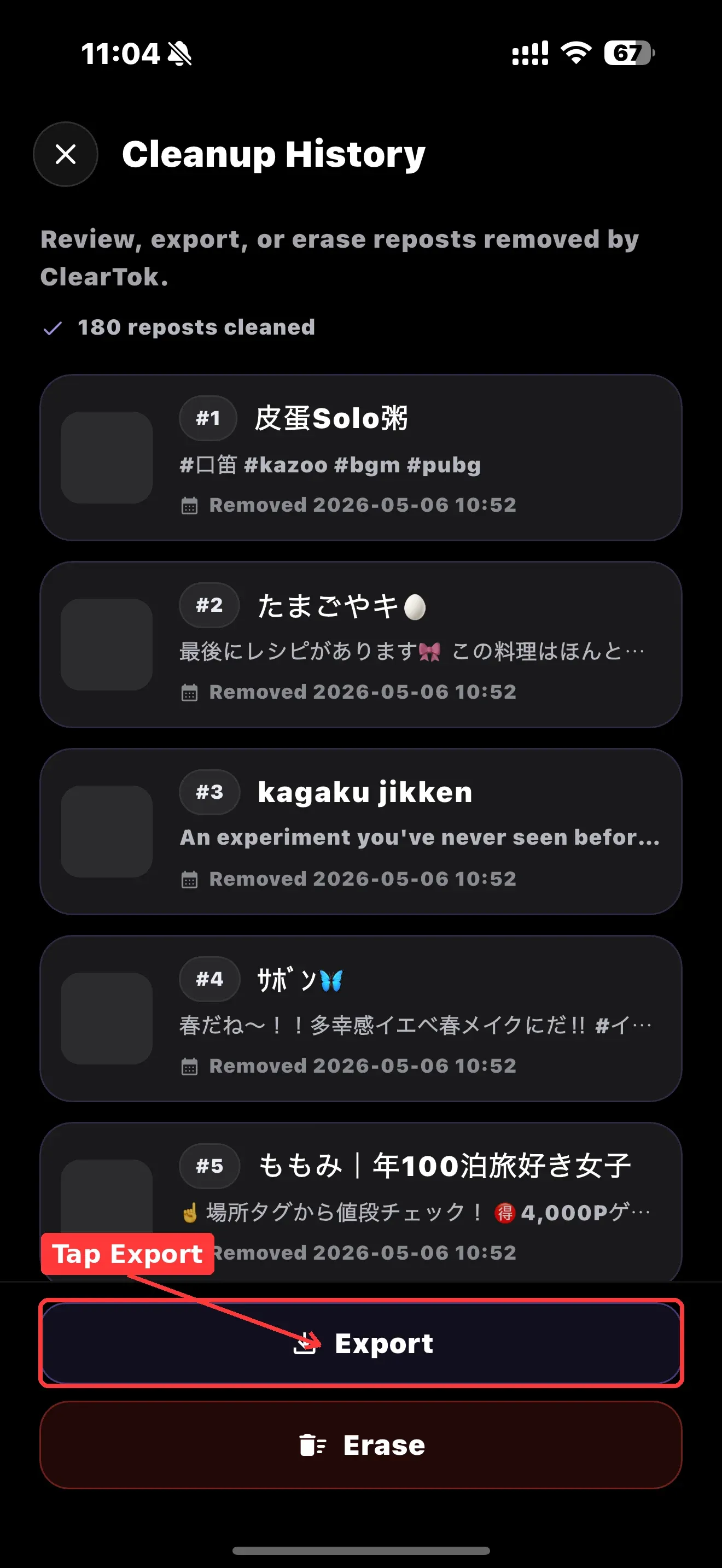
Export saves the removed-repost list so you can review it later or use it as a checklist when you decide which videos to repost manually. It does not put the reposts back on TikTok.
Below Export you will also see an Erase button. Erase clears the Cleanup History list itself — do not tap it unless you intentionally want to remove the history from ClearTok. Erasing the list will not bring any reposts back either; it only clears the local record.
Step 3: Tap the Icon to Open the Original TikTok Video
Each row in Cleanup History has a small icon on the right side. Tap that icon to open the original TikTok video.
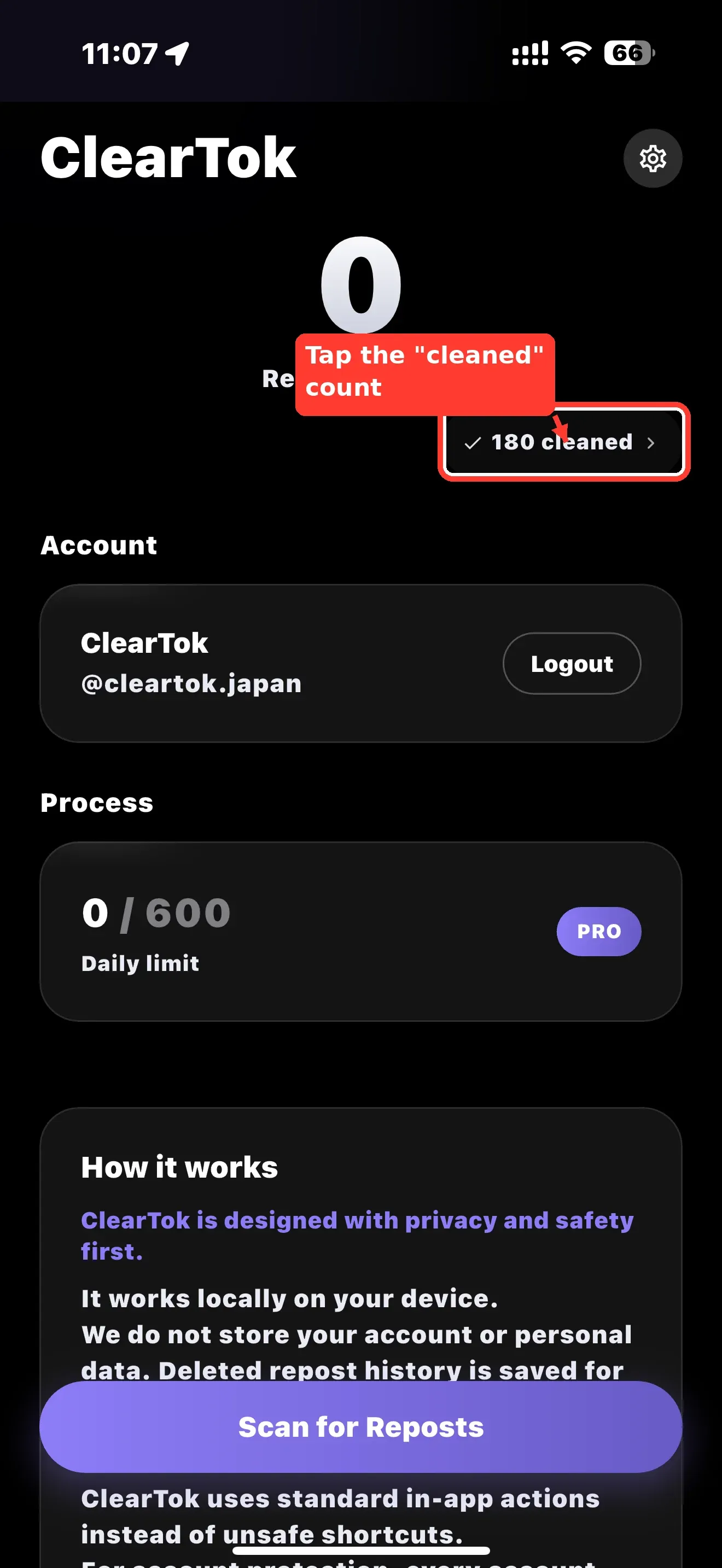
If the video is still public on TikTok, the TikTok app will open straight to that video's page. From there you can watch it, follow the creator, or repost it again.
If the video has been deleted by the creator, set to private, or removed by TikTok, the link may fail to open. That is expected — Cleanup History stores the original URL at the time of removal, but it cannot bring back videos that no longer exist.
Step 4: Repost the Video Manually in TikTok
Once the original video is open inside TikTok, repost it the same way you would any other video:
- Tap the Share icon on the right side of the video.
- In the share sheet, tap Repost.
- The video will appear in your reposts again.
You can repeat this for any video in Cleanup History that you want to keep. ClearTok does not automate this step on purpose — manual reposting keeps you in control and avoids interacting with TikTok in a way that could look like bulk automation.
Important Notes Before You Export or Reopen Videos
- ClearTok cannot restore reposts automatically inside TikTok. Reposting must be done manually, one video at a time.
- Some original videos may be unavailable: deleted by the creator, set to private, region-blocked, or removed by TikTok. These cannot be reopened or reposted.
- Export is a reference list. It does not undo removals.
- Erase is destructive for the Cleanup History list (not for TikTok). Avoid tapping it unless you specifically want to clear the local history.
- Cleanup History is stored locally on the device where you ran the cleanup. Reinstalling ClearTok or switching devices may reset the list.
ClearTok is an independent tool and is not affiliated with or endorsed by TikTok or ByteDance. Cleanup History exists so you can review the reposts you chose to remove — not to interact with TikTok beyond what you would do manually.
Troubleshooting
Cleanup History is empty
You have not removed any reposts through ClearTok on this device yet, or you previously tapped Erase. Run Scan for Reposts on the home screen and clean up reposts first; the list will populate as removals complete.
The original video will not open
The video was likely deleted, made private, or removed by TikTok between the time ClearTok cleaned the repost and now. There is no workaround — that video cannot be reposted again.
Some rows have no thumbnail
TikTok can stop serving the thumbnail once the original video is gone. The caption, handle, and removal date are still accurate references for the video that was removed.
I cannot find the exported file
Export uses your device's standard share / save sheet. Check the app you sent it to (Files, Mail, Notes, or whichever destination you picked). On iOS, "Save to Files" places it under the folder you chose; on Android, check Downloads or the destination app you selected.
I tapped Erase by mistake
Erase only clears the local Cleanup History list — it does not affect your TikTok account or restore the removed reposts. There is no undo for Erase. If you still need a list of removed reposts, you will need to re-run a scan, but ClearTok will only show reposts currently on your account, not previously removed ones.
FAQ
What does the "cleaned" number mean? The cleaned number is how many reposts ClearTok has removed from your TikTok account on this device. It is local to your install and not visible to TikTok.
Can I recover all deleted TikTok reposts at once? No. ClearTok cannot bulk-restore removed reposts back to TikTok. You can open each original video from Cleanup History and repost it manually inside the TikTok app.
What does Export do? Export saves the list of reposts ClearTok removed so you can use it as a reference later — for example, to decide which videos to repost manually. It does not restore reposts on TikTok.
Why can't I open some videos from Cleanup History? Some videos may have been deleted by the creator, set to private, region-blocked, or taken down by TikTok. When the original video is no longer available, the link cannot open.
What is the difference between Export and Erase? Export saves a copy of the removed-repost list. Erase deletes the local Cleanup History inside ClearTok. Neither one changes anything on TikTok — but Erase removes your only record of what was cleaned, so use it with care.
Final Thoughts
If you want to revisit reposts you cleaned up with ClearTok, tap the cleaned count on the home screen to open Cleanup History, then use Export to save the list or the row icon to jump to the original video. ClearTok keeps the record so you stay in control; if a video is still on TikTok, you can repost it again in a few taps.
Ready to clean up or review your reposts? Open ClearTok and tap Scan for Reposts to get started.
Related Guides
Ready to Try ClearTok?
Stop deleting reposts one by one. Get ClearTok and clean up your entire TikTok profile in minutes.
Browser Extension
Mobile App