

Delete or Mass Delete TikTok Reposts (2026 Guide)
Learn how to delete a single TikTok repost or mass delete all reposts at once using ClearTok. Free Chrome/Edge extension + Android & iOS app. Updated for 2026 TikTok UI.
💡 New in 2026: a dedicated ClearTok bulk repost remover page covers the exact one-click flow for Chrome, Edge, iPhone, and Android.
TL;DR (Quick Answer)
Can you mass delete TikTok reposts? Yes. TikTok itself only allows manual one-by-one deletion, but ClearTok bulk-deletes every repost on whichever device you use — Chrome and Edge browser extensions on desktop, plus a free iOS app (iPhone, iPad) and Android app (Google Play) on mobile. Each version performs the same end-to-end cleanup.
Time Comparison:
- Manual Deletion: ~45 mins for 100 reposts.
- Bulk Tool (ClearTok): ~3 mins for 100 reposts (same speed across desktop, iOS, and Android).
Recommendation: Use manual deletion for <10 videos. Use ClearTok — extension or app — for anything more.
Quick video overview: ClearTok TikTok Repost Remover — Intro Video
1. What Exactly Is a TikTok Repost?
Think of a repost as TikTok's answer to a retweet. You are not re-uploading the clip; you are boosting the original creator's video to your followers' For You feeds without changing the content.
If you searched for a "tiktok repost remover" or "remove all reposts TikTok", this guide covers the official manual steps and ClearTok — which runs locally on Chrome, Edge, iPhone, iPad, and Android, so you can bulk-delete from any device.
Why people repost:
- Share something funny or useful with friends.
- Keep your account active on days you don’t have fresh content.
- Support other creators and spark conversation.
2. Why You Might Want to Delete One Later
| Common Scenario | What Happens |
|---|---|
| Accidentally tapped “Repost” | The clip shows up in followers’ feeds and in your Reposts tab. |
| Changed your mind about endorsing the video | Your name remains attached until you remove it. |
| You’ve spam-liked or mass-reposted and cluttered the tab | Makes profile audits messy for brands or potential sponsors. |
Reposting is reversible and no notification is sent to followers when you remove it.
3. Manual Method: Remove a Single Repost (2026 UI)
- Open TikTok and navigate to your profile.
- Tap the two-arrows icon — that’s your Reposts tab.
- Select the video you want to undo.
- Hit Share (right-facing arrow).
- Tap the yellow Remove Repost button.
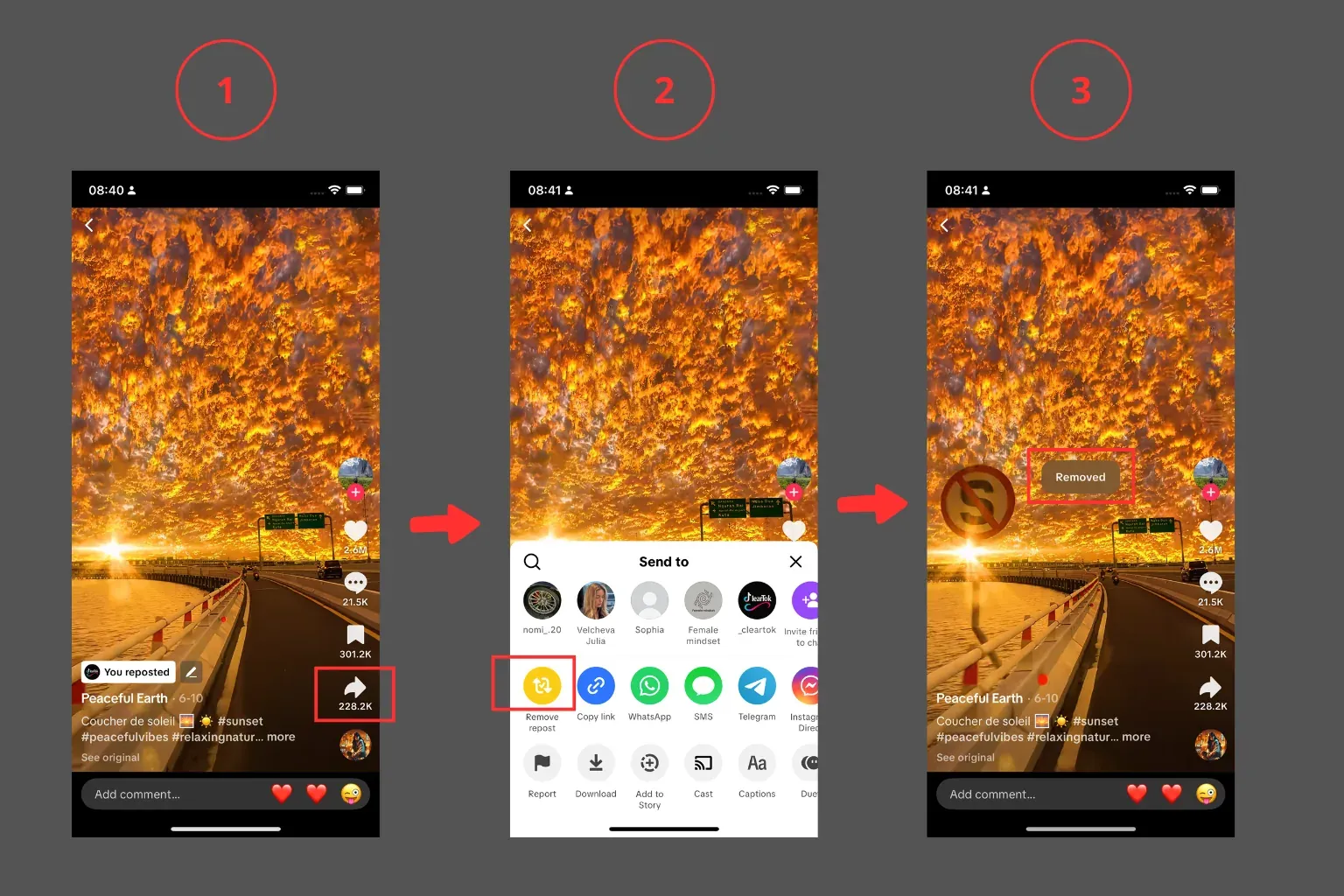
Alternate route (Android/iOS): Settings & privacy -> Activity Center -> History -> pick the video -> Share -> Remove Repost.
4. The Downsides of Doing It Manually
- Time-consuming if you have dozens to clean up.
- Easy to miss older reposts lost in your activity history.
- No batch-select; you repeat the same five taps for every clip.
- Risk of hitting TikTok rate limits if you go too fast. Brands managing multiple accounts feel this pain daily.
5. One-Click Bulk Cleanup with ClearTok (Desktop or Mobile)
"I cleared 400+ reposts in under 5 minutes." — early ClearTok user
ClearTok is lightweight and ships on every device:
- Desktop: Chrome and Edge browser extension (also works in Brave and Arc).
- iPhone / iPad: ClearTok app on the App Store.
- Android: ClearTok app on Google Play.
What every version does:
- Scans your Reposts tab automatically.
- Deletes reposts with human-like pauses to avoid rate limits.
- Logs each removal so you can review what changed.
- Runs locally on your device — no TikTok password ever leaves your browser or phone.
How to try it
Desktop:
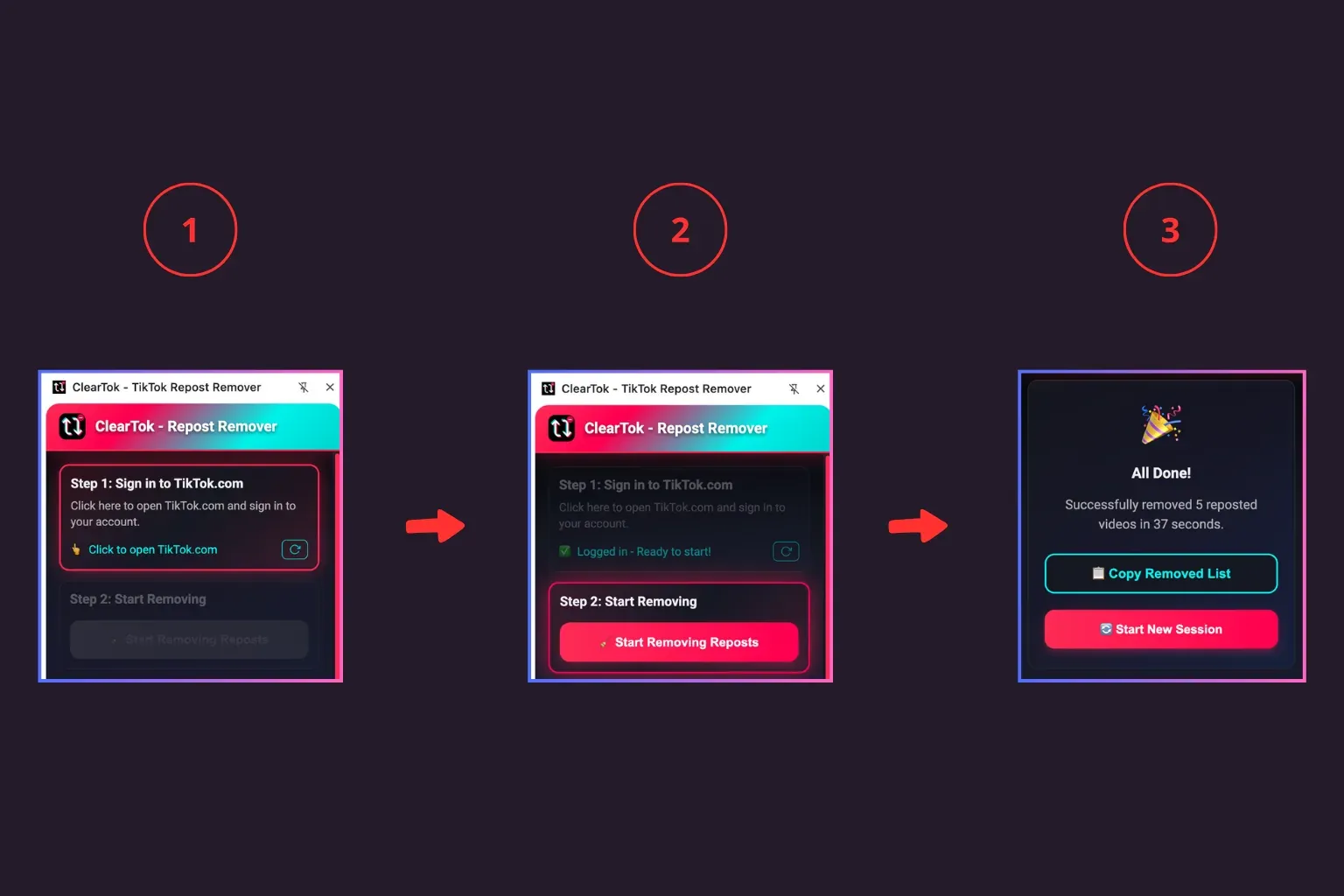
- Install the extension from the Chrome Web Store or Edge Add-ons → pin it next to the address bar.
- Open TikTok.com on desktop and sign in.
- Click Start in ClearTok. Lean back while the counter drops to zero.
iPhone, iPad, or Android:
- Install the ClearTok app from the App Store or Google Play.
- Open the app and sign into your TikTok session inside it.
- Tap Start. The app runs the same cleanup directly on your phone.
Your profile is now spotless, ready for fresh content or that brand-partnership audit.
Limitations and When Not to Use It
- If TikTok hides your Reposts tab during UI tests, no client (extension or app) can access it.
- For very large backlogs, run in batches and take short breaks regardless of device.
- ClearTok only removes reposts, not original uploads.
6. Manual vs Bulk: Which Should You Use in 2026?
| Method | Best for | Time per 100 reposts | Pros | Cons |
|---|---|---|---|---|
| Manual (Remove Repost) | A few accidental shares | 30-60 minutes | Full control; no extra tools | Repetitive; easy to miss older reposts |
| ClearTok bulk delete | Dozens to thousands | 3-10 minutes | One click; paced to avoid rate limits; exportable log; runs on Chrome, Edge, iPhone, iPad, and Android | Requires installing the extension or app |
If you only need to undo a single repost, stick to the built-in method. For deep cleanups or audits, bulk deletion is faster and more reliable.
7. Where Is “Remove Repost” on iPhone/Android vs Desktop? (2026)
iPhone/Android (2026 UI)
- Profile -> tap the two-arrows Reposts tab.
- Open the reposted video -> Share -> Remove Repost.
- Alternatively: Settings & privacy -> Activity Center -> History -> pick the video -> Share -> Remove Repost.
Desktop (tiktok.com)
- Go to your profile -> Reposts tab (two arrows).
- Open any reposted video.
- Click Share -> Remove Repost.
Pro tip: Desktop makes long cleanups easier and works seamlessly with ClearTok.
8. Troubleshooting: Can’t Find the Reposts Tab or Button
- Update the TikTok app to the latest version.
- Clear app cache: Profile -> Settings & privacy -> Free up space.
- Log out and back in (forces UI refresh).
- Try desktop web at tiktok.com where the Reposts tab is easier to spot.
- Long-press the video thumbnail in the Reposts tab to reveal Remove Repost.
- Still missing? TikTok runs UI experiments; check Activity Center -> History.
9. Safety and Rate-Limit Tips
- Avoid rapid-fire actions; pause between removals.
- Prefer local, browser-based tools that don’t ask for your TikTok password.
- ClearTok runs in your browser with human-like delays and an exportable log.
- Avoid risky downloads that advertise a "tiktok repost remover apk" or "remove all reposts TikTok apk". There is no official APK for bulk actions.
- Learn more: Is It Safe to Use Tools to Remove All TikTok Reposts?
10. FAQ: TikTok Repost Deletion (2026)
How do I delete a repost on TikTok?
Open the video -> Share -> Remove Repost. On desktop, it is the same flow.
Can I mass delete or delete all TikTok reposts at once? TikTok does not offer a native delete-all button. ClearTok adds one — install the free Chrome or Edge extension on desktop, or the free ClearTok app from the App Store (iPhone, iPad) or Google Play (Android). Each version performs the same end-to-end bulk delete in a single session.
Does removing a repost delete the original video?
No. It only removes your boost; the original creator’s post remains intact.
Will followers be notified when I remove a repost?
No. TikTok does not send notifications when you unrepost.
Why can’t I see the Reposts tab?
Update the app, clear cache, relog, or switch to desktop. Some accounts are in UI tests where the tab is under Activity Center -> History.
11. Final Thoughts
Reposting is a fantastic discovery tool, but an untidy repost trail can confuse the algorithm — and your audience. Use TikTok's built-in "Remove Repost" for the occasional cleanup, or let ClearTok handle bulk jobs in one click so you can get back to creating.
Ready to detox your profile? Install ClearTok free on whichever device you use most:
Related Guides
Ready to Try ClearTok?
Stop deleting reposts one by one. Get ClearTok and clean up your entire TikTok profile in minutes.
Browser Extension
Mobile App