Why Is My Repost Button Missing on TikTok? 8 Fixes
Wondering why your repost button is missing on TikTok? Check the 8 most common causes, quick fixes, official limits, and what to do next.
Quick Answer: Why Is My Repost Button Missing on TikTok?
If your repost button is missing on TikTok, the most common causes are an outdated app, a temporary cache problem, a video that is not eligible for reposting, an account restriction, or a regional feature rollout. Start by updating TikTok, restarting the app, and checking the same Share menu on several public videos before assuming the feature is gone from your account.
TikTok's official repost help page says the Repost action normally appears from the Share button, a long-press menu, or a friend's repost label. If those entry points are missing everywhere, work through the fixes below.
First Check: Where the Repost Button Should Appear
On an eligible TikTok video, you usually find Repost in one of these places:
| Place to check | What to do |
|---|---|
| Share menu | Open a video, tap Share, then look for Repost. |
| Long press menu | Press and hold the video, then look for Repost. |
| Friend repost label | If a friend reposted the video, tap their profile photo near the bottom and look for Repost. |
If the button is missing on one video but appears on others, the issue is probably video-specific. If it is missing everywhere, continue with the account and app checks below.
8 Causes and Fixes for a Missing TikTok Repost Button
1. TikTok Is Outdated
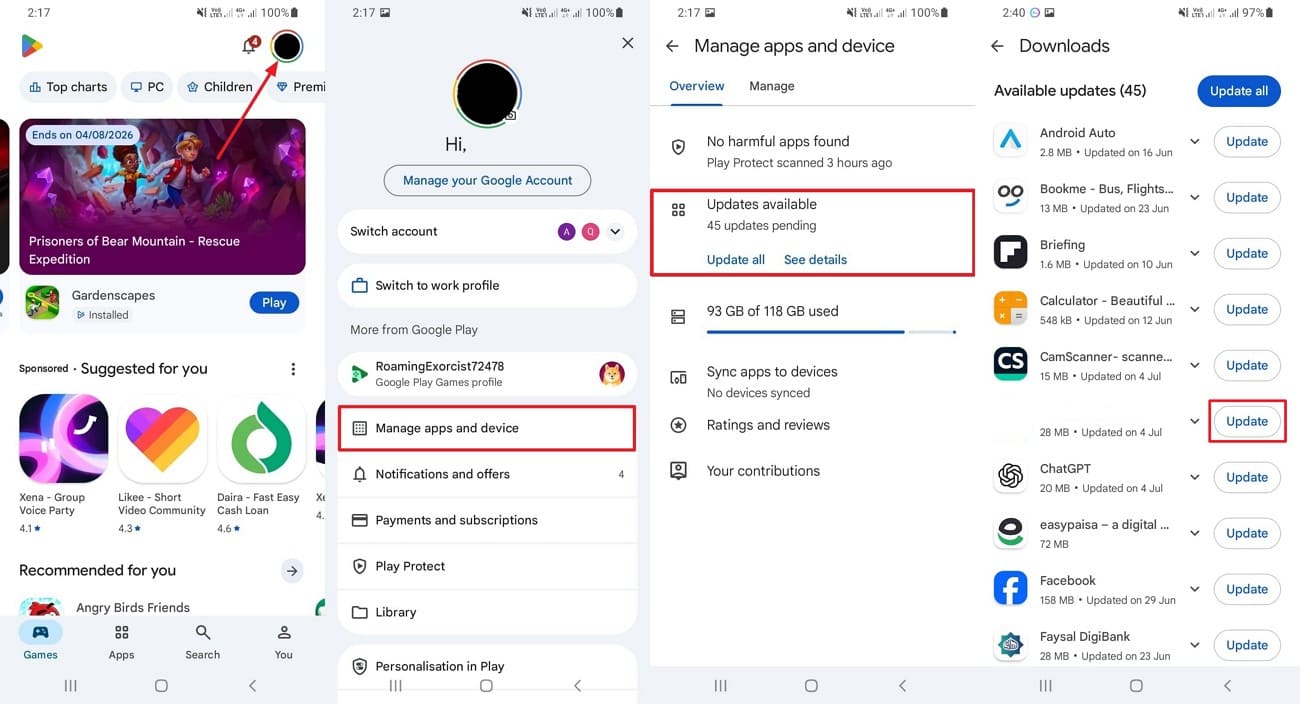
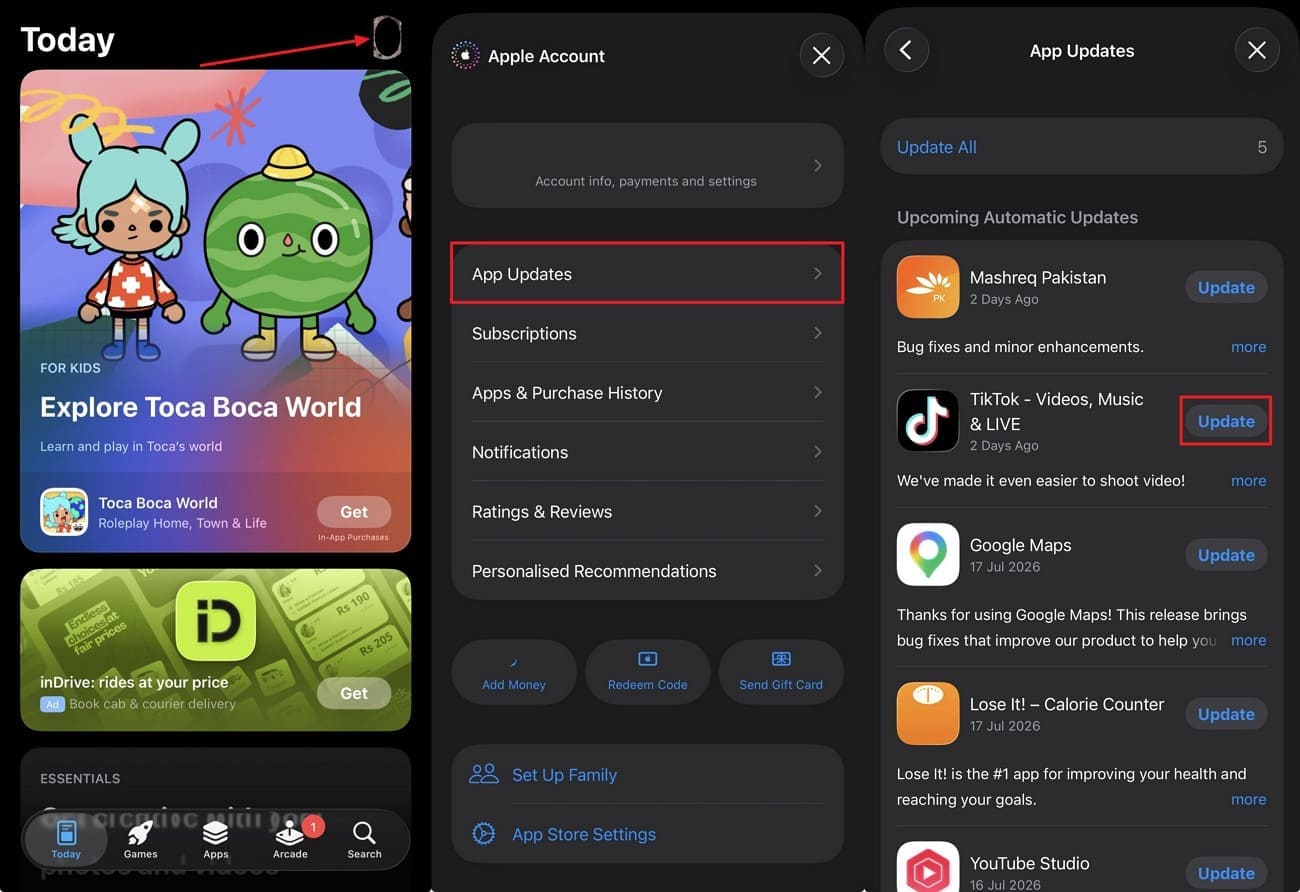
Older TikTok versions sometimes show different Share menu options. Updating the app is the first low-risk fix.
Fix: Open Google Play or the App Store, search for TikTok, and install any available update. Reopen TikTok and test the Share menu again.
2. The App Cache Is Stale
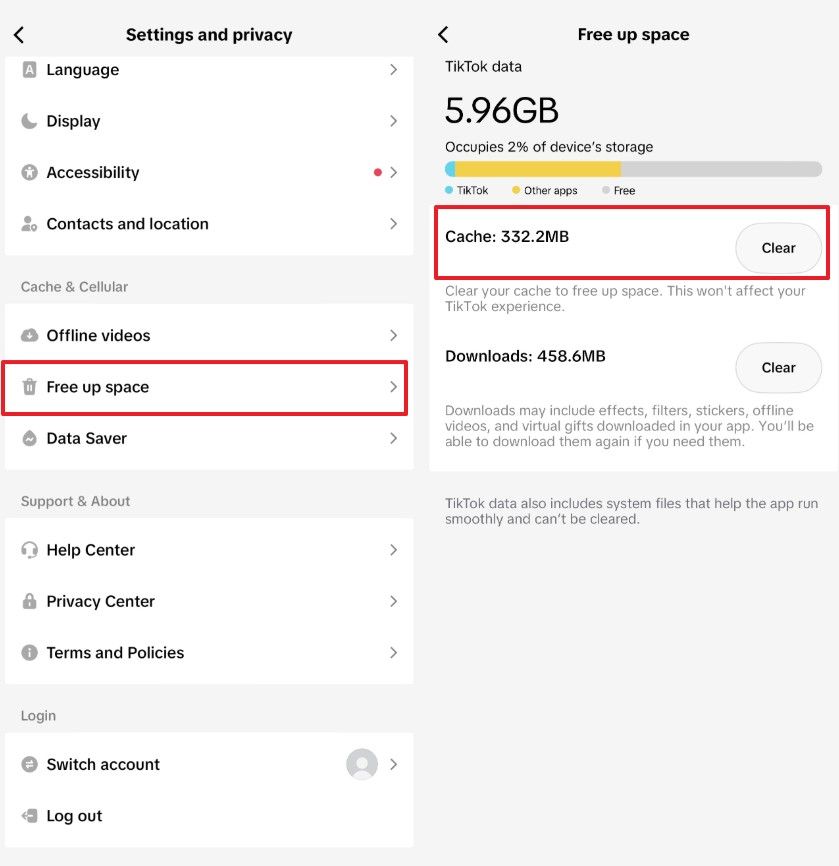
TikTok can keep old profile and menu data in cache. That can make a feature appear missing even when the account itself is fine.
Fix: In TikTok, go to Profile -> Menu -> Settings and privacy -> Free up space, then clear the cache. After that, force-close TikTok and reopen it.
3. The Video Is Not Eligible for Reposting
Some videos do not expose every sharing option. This can happen because of video availability, privacy state, safety restrictions, account status, or platform-level rules. Avoid assuming the creator disabled reposts unless TikTok clearly shows that option or you have a reliable source.
Fix: Test three different public videos from unrelated accounts. If Repost appears on other videos, your account is probably fine and the original video is the limitation.
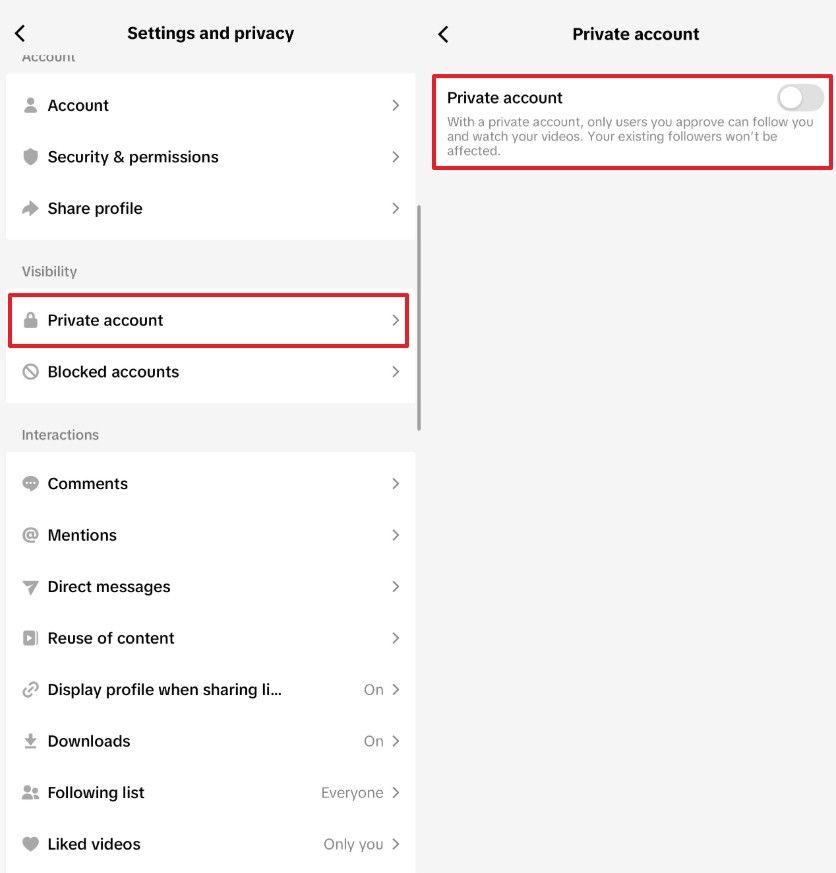
4. You Are Looking in Settings Instead of the Video Share Menu
Many users search for a Repost toggle in Settings and privacy, but TikTok does not usually place the repost action there. Repost is a per-video sharing action, not a global setting users can always turn on from the settings screen.
Fix: Open an eligible public video and check the Share menu directly.
5. Private Account Visibility Is Being Misread
A private account does not automatically mean the Repost button must disappear. TikTok's official repost guidance says private-account reposts can be visible to followers on the profile and in their For You feed. Privacy mainly changes who can see reposted content, not whether every video can be reposted.
Fix: Do not switch privacy settings repeatedly just to force the button back. Instead, test the button on multiple public videos, then review broader account status if it is missing everywhere.
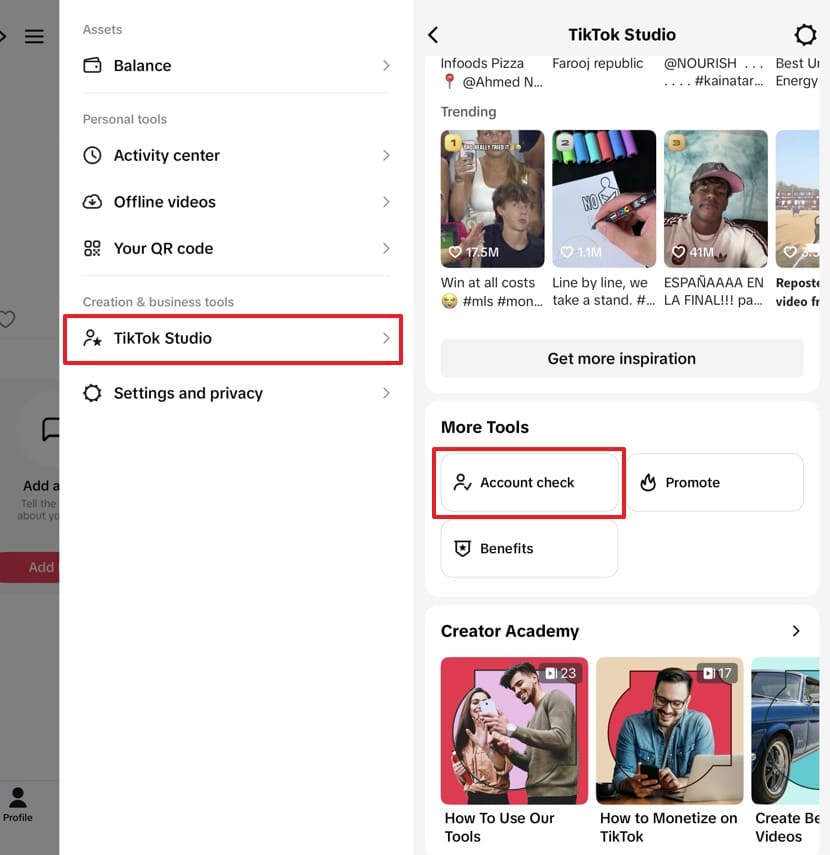
6. Your Account Has a Restriction or Warning
If TikTok has limited your account because of unusual activity or a policy issue, some actions may behave differently.
Fix: Open Profile -> Menu -> TikTok Studio -> Account Check and review any active warnings. If there is a restriction, follow TikTok's instructions before troubleshooting the Repost button further.
7. TikTok Is Running a Feature Test
TikTok frequently changes app UI by account, device, version, and region. One account may see a button while another account does not.
Fix: Test the same account on another device, or test another account on the same device. This helps separate a device problem from an account-level rollout.
8. Your Region or Content Category Has Limited Access
Regional availability and content category rules can affect TikTok features. If the Repost button is missing across every feed type, every video, and every device, the cause may be outside your control.
Fix: Wait for the feature to return, keep TikTok updated, and avoid risky APKs or modified apps that claim to restore reposting.
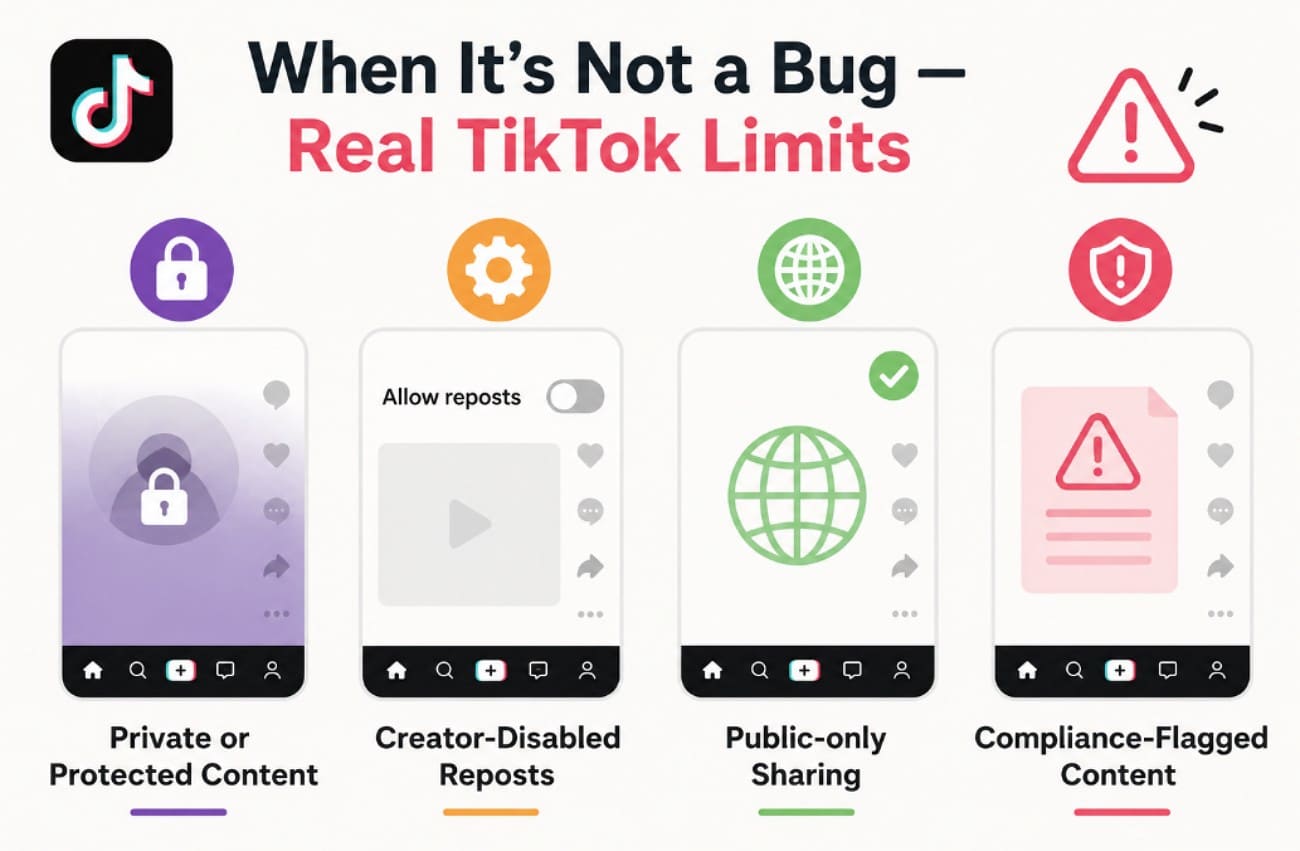
When It Is Not a Bug
Not every missing Repost button needs a technical fix. It may be expected when:
- The video is private, unavailable, age-restricted, or under a safety limit.
- TikTok is testing a different Share menu for your account.
- The content type does not support reposting in your current app version.
- Your account has a temporary limitation that needs to expire or be resolved.
In those cases, updating or clearing cache may not change anything. The better move is to test several public videos and confirm whether the problem affects one video or the whole account.
Still Missing? Report the Problem to TikTok
If the Repost button is missing everywhere after the checks above, report it inside TikTok:
- Tap Profile.
- Tap the Menu button.
- Go to Settings and privacy -> Report a problem.
- Choose the closest topic, follow the prompts, and use Need more help? if the suggested steps do not solve it.
Official support is the right path when the issue appears tied to your account or region.
After Repost Returns: Check What You Already Reposted
Once your Repost button is working again, it is worth checking what is already visible on your profile. For any public profile, open the free ClearTok Repost Checker to see the visible repost count and recent repost context.
If the checker shows old reposts you no longer want associated with your profile, the next step is ClearTok's Remove All Reposts on TikTok tool. Use the checker first to understand the cleanup size, then use the remover only when you are ready to clear reposts.
Related Guides
- TikTok Reposts Not Showing on Profile: Causes and Fixes
- How to See Your Reposts on TikTok
- How to Delete or Remove a Repost on TikTok
- TikTok Repost Checker — count any public profile
Frequently Asked Questions
Why is my repost button missing on TikTok? The most common reasons are an outdated app, stale cache, a video that is not eligible for reposting, an account restriction, or a regional rollout. Test several public videos before assuming the feature is removed.
Where is the Repost button on TikTok? Open an eligible video, tap Share, then look for Repost. Some app versions also show Repost when you press and hold a video.
Why don't I have a repost option in my settings? TikTok usually places Repost inside each video's Share menu, not as a permanent setting in Settings and privacy.
Does a private account remove the Repost button? Not necessarily. Private-account reposts may still be visible to followers. Privacy mainly changes who can see reposts, while video eligibility and account state affect whether the button appears.
Can ClearTok bring back a missing TikTok Repost button? No. ClearTok cannot create reposts or force TikTok to show a missing Repost button. ClearTok helps you check visible reposts and remove old reposts after TikTok exposes them.
Should I download an APK to restore the Repost button? No. Avoid modified APKs or unofficial apps that promise to restore TikTok features. They can create privacy and account-safety risks.
Disclaimer: TikTok is a trademark of ByteDance Ltd. ClearTok is an independent tool and is not affiliated with or endorsed by TikTok or ByteDance.
Ready to Try ClearTok?
Stop deleting reposts one by one. Get ClearTok and clean up your entire TikTok profile in minutes.
Browser Extension
Mobile App