

How to Unrepost on TikTok (Single & Bulk Unrepost Guide 2026)
Learn how to unrepost on TikTok — remove a single repost or unrepost everything at once. Step-by-step guide for mobile and desktop.
What Does "Unrepost" Mean on TikTok?
When you "repost" a video on TikTok, it shares that video to your profile's Repost tab and may appear in your followers' feeds. Unreposting means removing that share — the video disappears from your profile but remains on the original creator's page.
Unreposting doesn't delete the original video. It only removes your share of it.
How to Unrepost a Single Video on TikTok
On Mobile (iPhone/Android)
- Open the TikTok app
- Go to your Profile → tap the ↻ Reposts tab
- Find the video you want to unrepost
- Tap the Share button (→ arrow)
- Tap Remove Repost (or Unrepost)
On Desktop (TikTok.com)
- Go to tiktok.com in your browser
- Click your Profile → Reposts tab
- Hover over the video → click the share icon
- Click Remove Repost
How to Unrepost All TikTok Videos at Once
TikTok doesn't have a "unrepost all" button. To unrepost everything at once, you need an automation tool like ClearTok.
Method 1: ClearTok Browser Extension (Desktop)
- Install ClearTok for Chrome or Edge
- Open TikTok.com → sign in → go to your Reposts tab
- Click the ClearTok icon → Start
- ClearTok unrepost all videos automatically with safe pacing
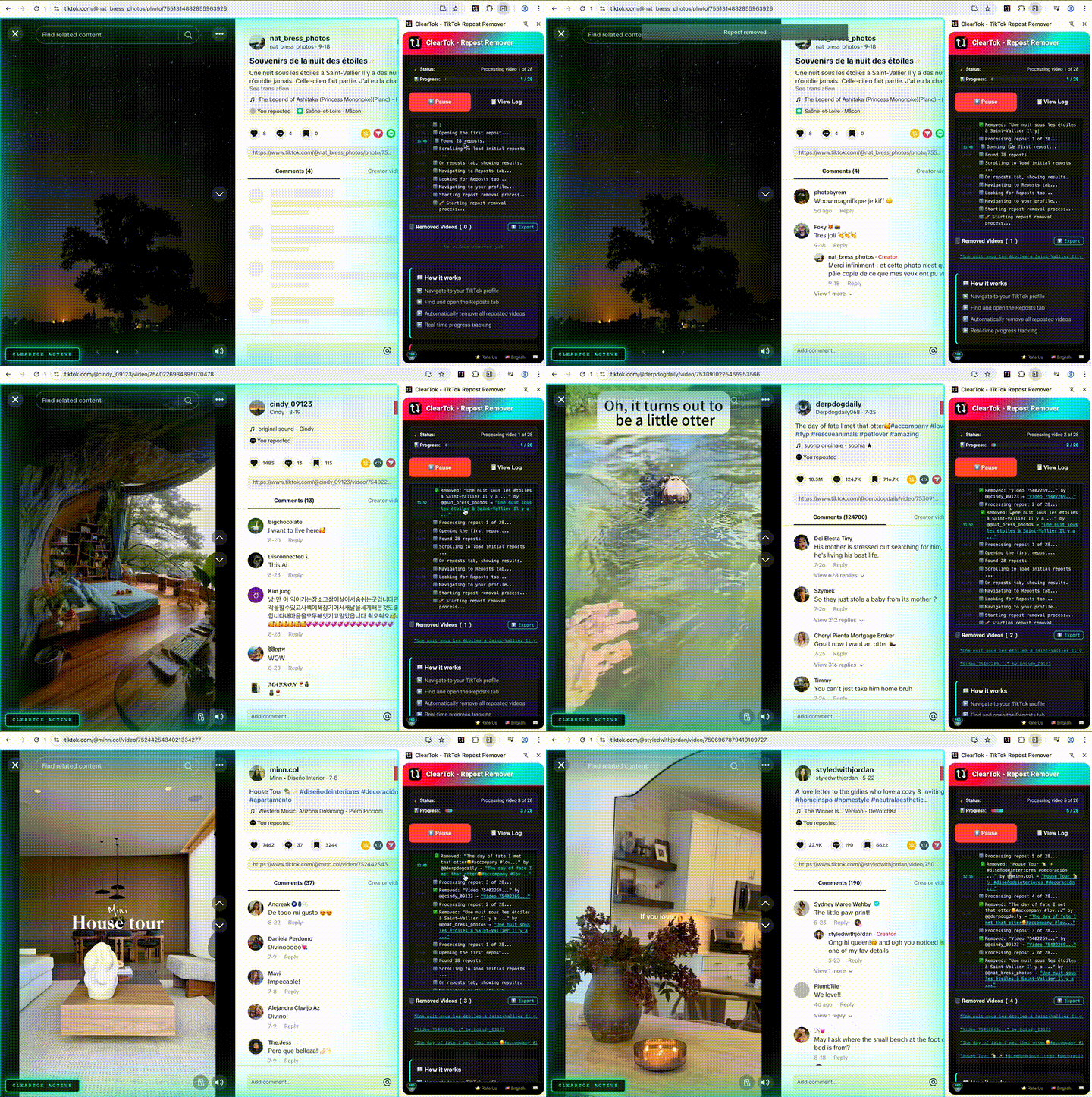
Time: ~8 minutes for 500 reposts (vs. 2+ hours manually)
Method 2: ClearTok iOS App (iPhone/iPad)
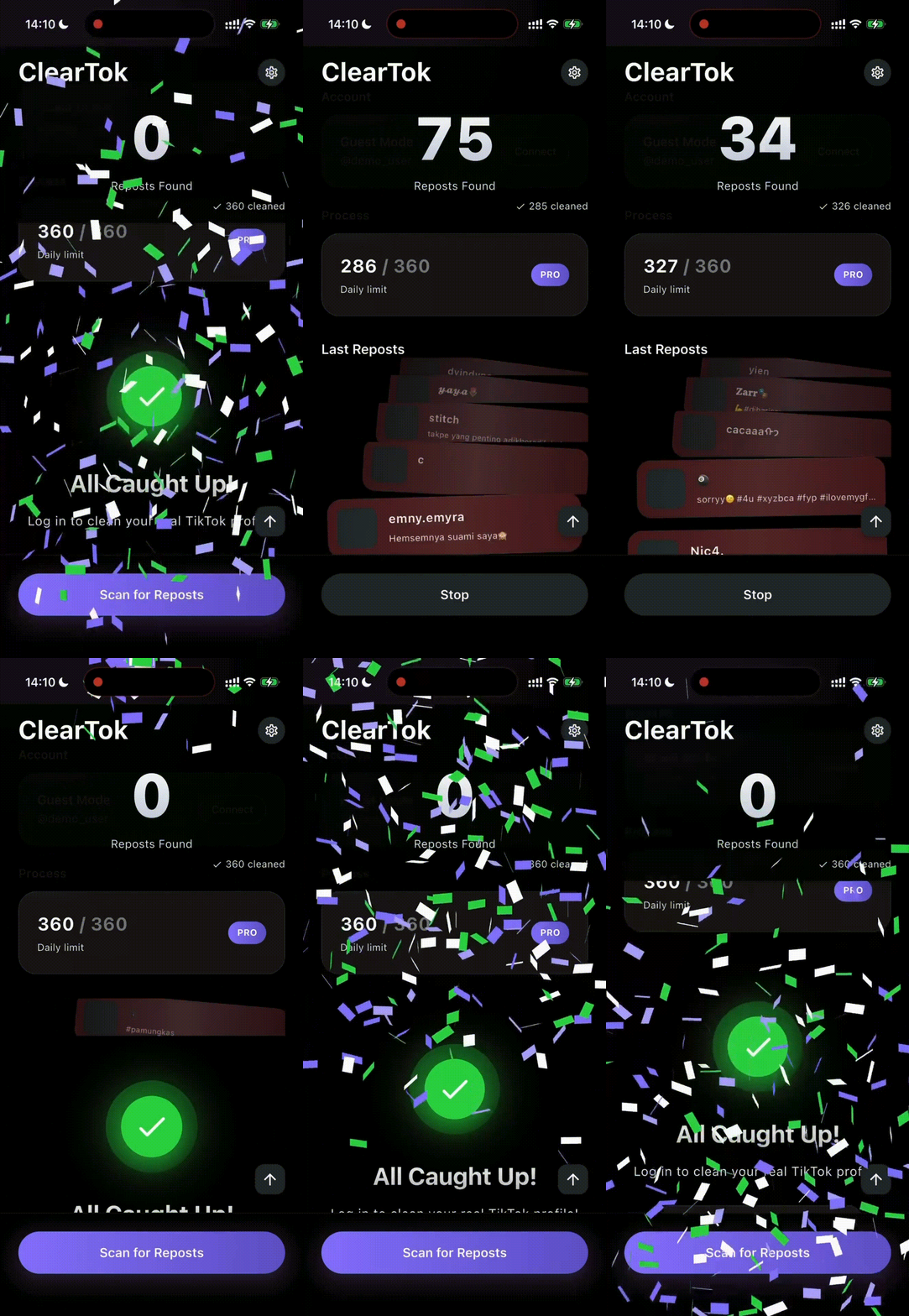
- Download ClearTok from the App Store
- Follow the in-app instructions to bulk unrepost
Method 3: Manual One-by-One (Any Device)
For small numbers (under 20 reposts), manual unreposting works fine:
- Open each reposted video
- Tap Share → Remove Repost
- Repeat for each video
Time: ~10 seconds per video
Why Would You Want to Unrepost on TikTok?
- Accidental reposts: The repost button is close to "Like" — easy to tap by mistake
- Profile cleanup: Keep your repost tab professional and on-brand
- Privacy: Remove content you no longer want associated with your profile
- Fresh start: Clear everything and start curating reposts intentionally
Unrepost vs Delete vs Unlike
| Action | What it does | Reversible? |
|---|---|---|
| Unrepost | Removes your repost/share from your profile | ✅ Yes (repost again later) |
| Delete | Permanently removes your original video | ❌ No |
| Unlike | Removes video from your Liked videos | ✅ Yes (like again) |
Unreposting is safe — it doesn't affect the original creator's video or your account in any way.
Summary
| Method | Speed | Best for |
|---|---|---|
| Manual unrepost (mobile/desktop) | ~10 sec/video | Under 20 reposts |
| ClearTok extension (desktop) | ~3 sec/video | 20+ reposts |
| ClearTok iOS app | Varies | Mobile users |
Whether you need to unrepost a single video or clear your entire repost history, there's a method for you. For anything more than a handful of reposts, ClearTok saves you hours of repetitive tapping.
Related Articles
- Remove All Reposts on TikTok
- How to Delete All Reposts on TikTok at Once
- How to See Reposts on TikTok
- Is It Safe to Remove All TikTok Reposts?
Disclaimer: "TikTok" is a trademark of ByteDance Ltd. ClearTok is an independent tool and is not affiliated with or endorsed by TikTok or ByteDance.
Ready to Try ClearTok?
Stop deleting reposts one by one. Get ClearTok and clean up your entire TikTok profile in minutes.